Design for both uses
A browser can display a regular icon as supplied, while an operating system may mask an installed PWA icon. Export separate files for regular and maskable uses so you can review the composition for each purpose. Start with the PWA icon generator.
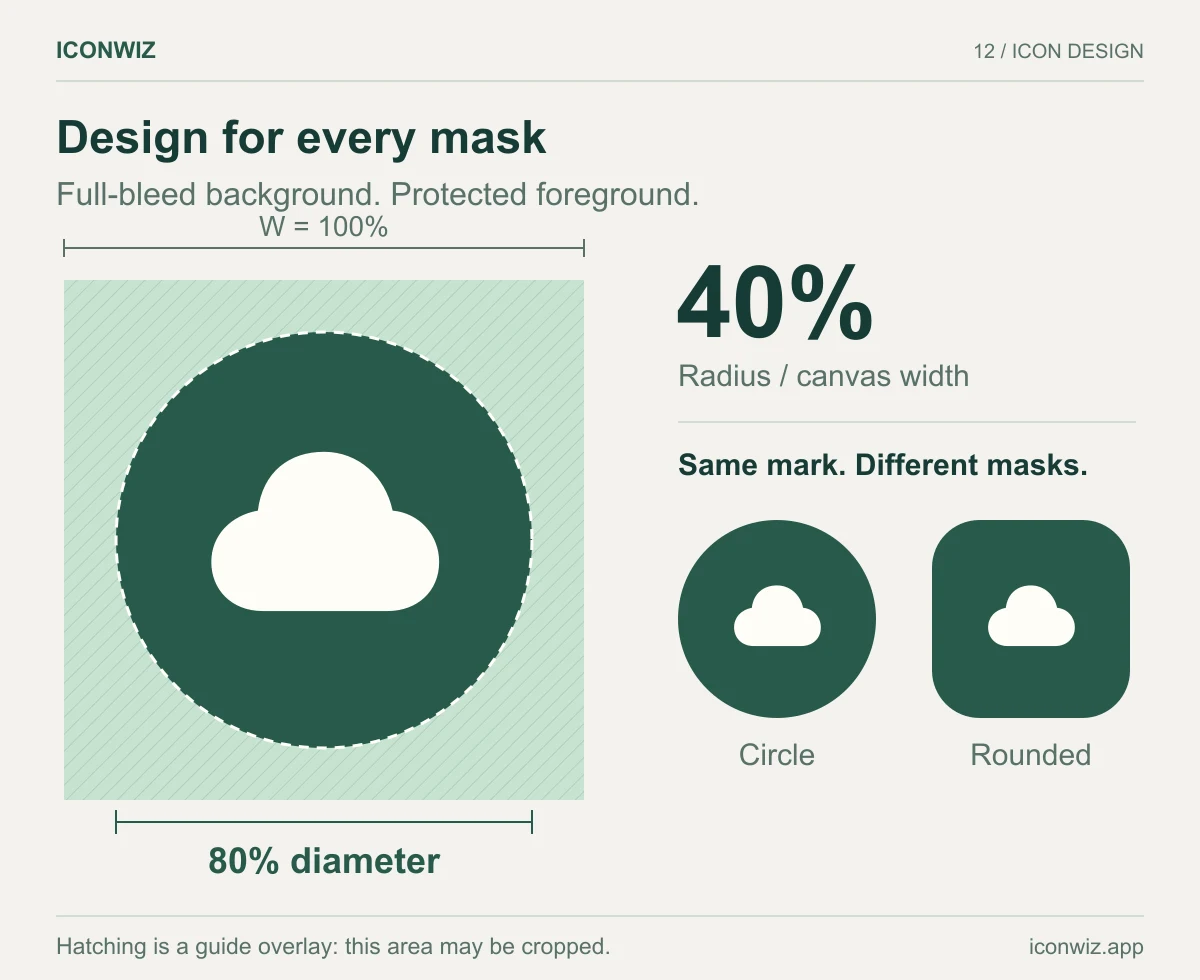
Keep essential content inside the central safe circle with a radius of 40% of the image width. Fill the background to the canvas edges. A square occupying the central 80% still has corners outside that safe circle, so use a circular safe-area check rather than only comparing a bounding box.
Export the PWA preset
Import the artwork, adjust padding and select PWA. Inspect both 192- and 512-pixel outputs, plus the maskable variants. Export and extract the ZIP. The preset provides images; add or update the manifest in your application yourself.
Merely naming a file maskable-icon-512x512.png does not make its artwork safe for cropping. Use a mask preview and ensure letters, tips or other important details stay visible.
Reference the correct files
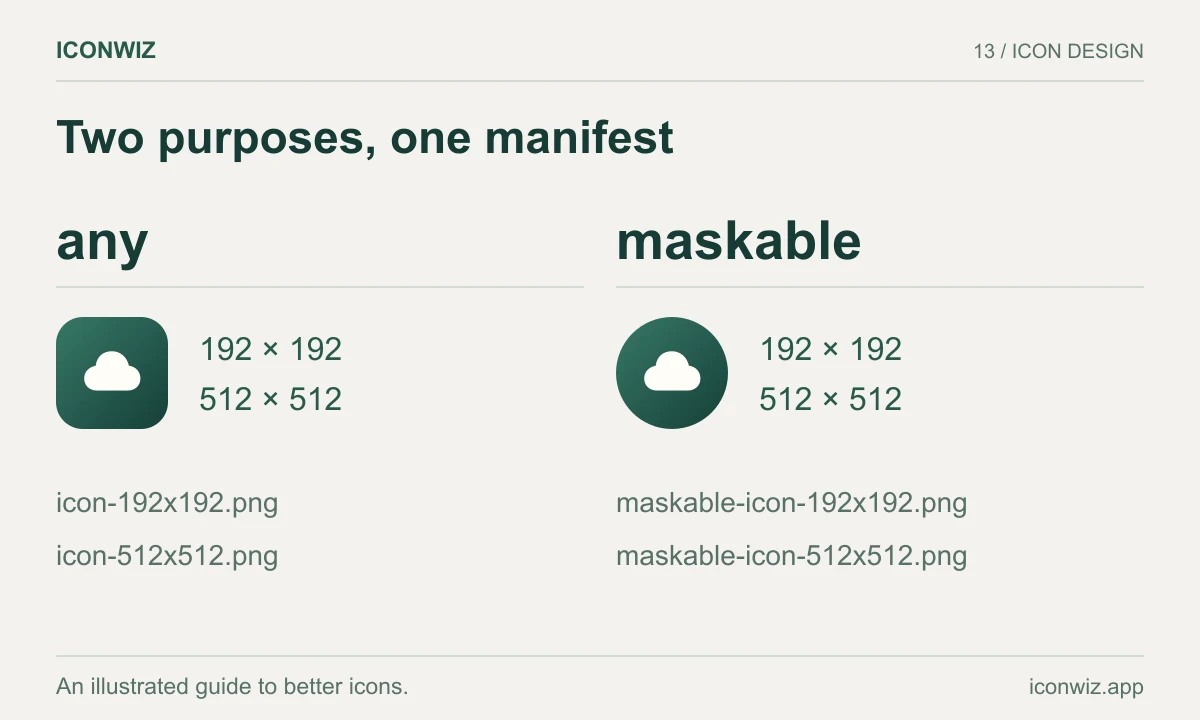
Copy the images to public/icons, then adapt your manifest icon array:
{
  "icons": [
    { "src": "/icons/icon-192x192.png", "sizes": "192x192", "type": "image/png", "purpose": "any" },
    { "src": "/icons/icon-512x512.png", "sizes": "512x512", "type": "image/png", "purpose": "any" },
    { "src": "/icons/maskable-icon-192x192.png", "sizes": "192x192", "type": "image/png", "purpose": "maskable" },
    { "src": "/icons/maskable-icon-512x512.png", "sizes": "512x512", "type": "image/png", "purpose": "maskable" }
  ]
}
This fragment only describes icons. Keep your existing name, start_url, display and other application fields. Adjust paths for your hosting setup. Link the manifest from the page if your framework does not already do so.
<link rel="manifest" href="/manifest.webmanifest">
Read the MDN manifest icons reference and maskable icon guidance.
Verify before calling it done
Open the manifest and image URLs directly; they must return the intended files. Inspect the manifest in browser developer tools and preview masks. Install the PWA on a test device and compare its launcher icon with your source. If an older installed icon persists, test a fresh installation after verifying the deployed assets and caches.
Correct icons alone do not satisfy every PWA installation requirement. Keep your application's manifest, HTTPS and browser-specific requirements in view.
Related workflows
A browser tab still needs favicon links. A native Android package uses Android launcher resources rather than the web manifest icon array.