Understand the two resource paths
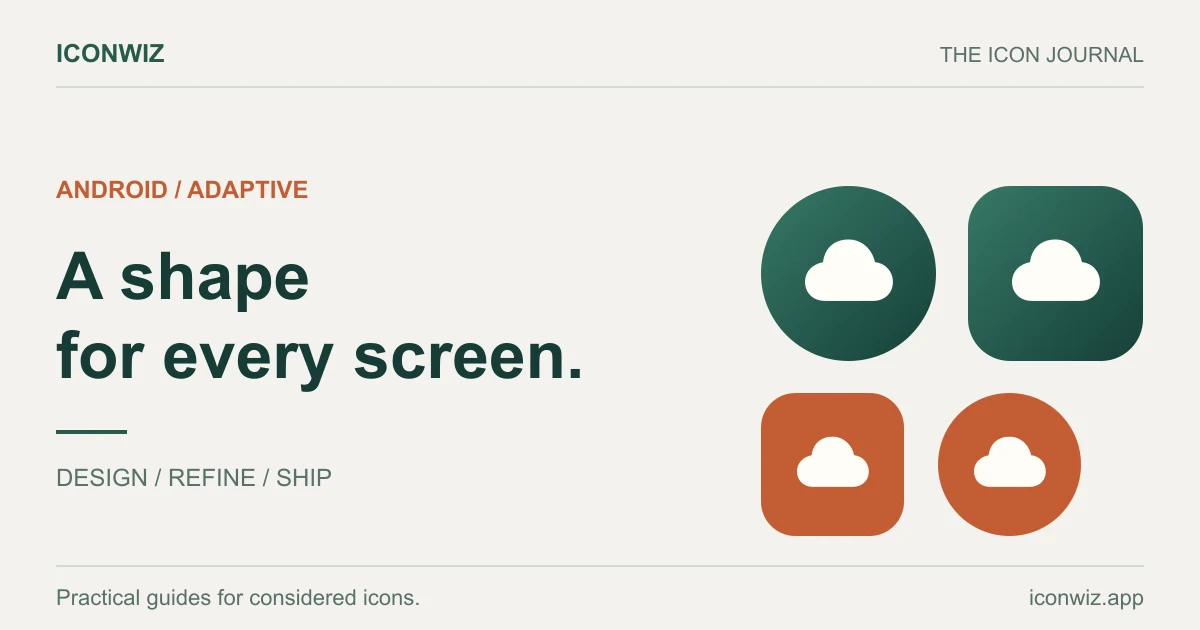
Older launchers use raster icons from density-specific mipmap folders. Adaptive icons use a foreground and background with XML references so the launcher can apply its own shape. A Play Store image is another artifact; it does not replace launcher resources.
Start in the Android icon generator. Import your source and choose Android. For a Flutter project, use the Flutter preset to keep the archive aligned with that project structure.
Leave room for launcher masks
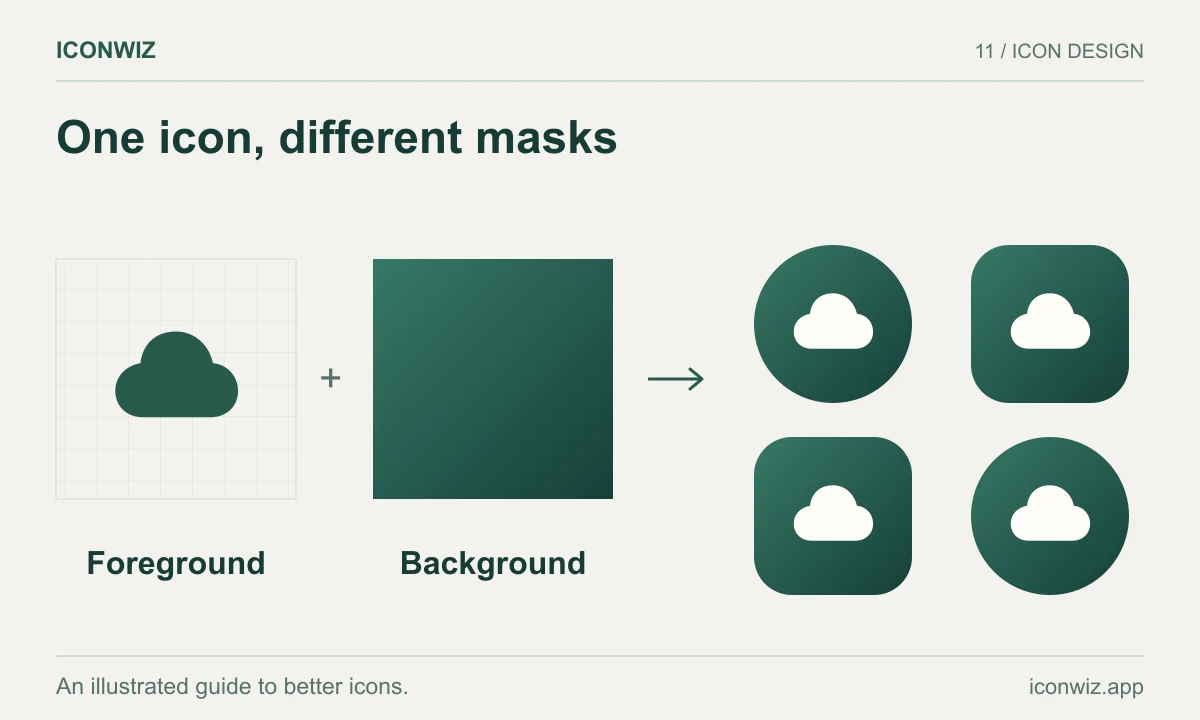
Place the important mark near the center. A source that touches every edge may lose detail when a launcher uses a circle or a squircle. Inspect the foreground against the background, and test multiple masks. Monochrome resources also need inspection: a design that relies on several colors may lose meaning when reduced to one silhouette.
Export and inspect the resource tree
Export the default Android set, extract the ZIP and inspect android/app/src/main/res. The exporter adds companion resources including adaptive icon XML:
android/app/src/main/res/
  mipmap-mdpi/
  mipmap-hdpi/
  ... other density folders
  mipmap-anydpi-v26/
    ic_launcher.xml
    ic_launcher_round.xml
Keep referenced foreground, background and monochrome drawable resources with the XML. Do not copy only the mipmap-anydpi-v26 folder and discard the files it references. Generated PNG names and sizes are listed on the tool page.
Merge into the project
Back up your existing resources. Merge the generated res contents into the application module, adjusting the destination if your module is not named app. Check the application element in AndroidManifest.xml:
<application
    android:icon="@mipmap/ic_launcher"
    android:roundIcon="@mipmap/ic_launcher_round">
    <!-- Existing activities and settings -->
</application>
This is a reference fragment, not a replacement for your manifest. Preserve existing application settings. Build with Gradle and resolve any missing resource references before installing.
Verify installed behavior
Inspect home-screen and app-list icons on supported Android versions. Test at least a circular and a rounded-square mask where your test environment permits. Reinstall if necessary to distinguish stale launcher caching from a resource problem. Check store artwork separately before submission.
See Android adaptive icon documentation for masking and layer requirements. For the web version of your app, the PWA maskable tutorial uses a different manifest format and safe-area rule.