Prepare an icon that survives a small tab
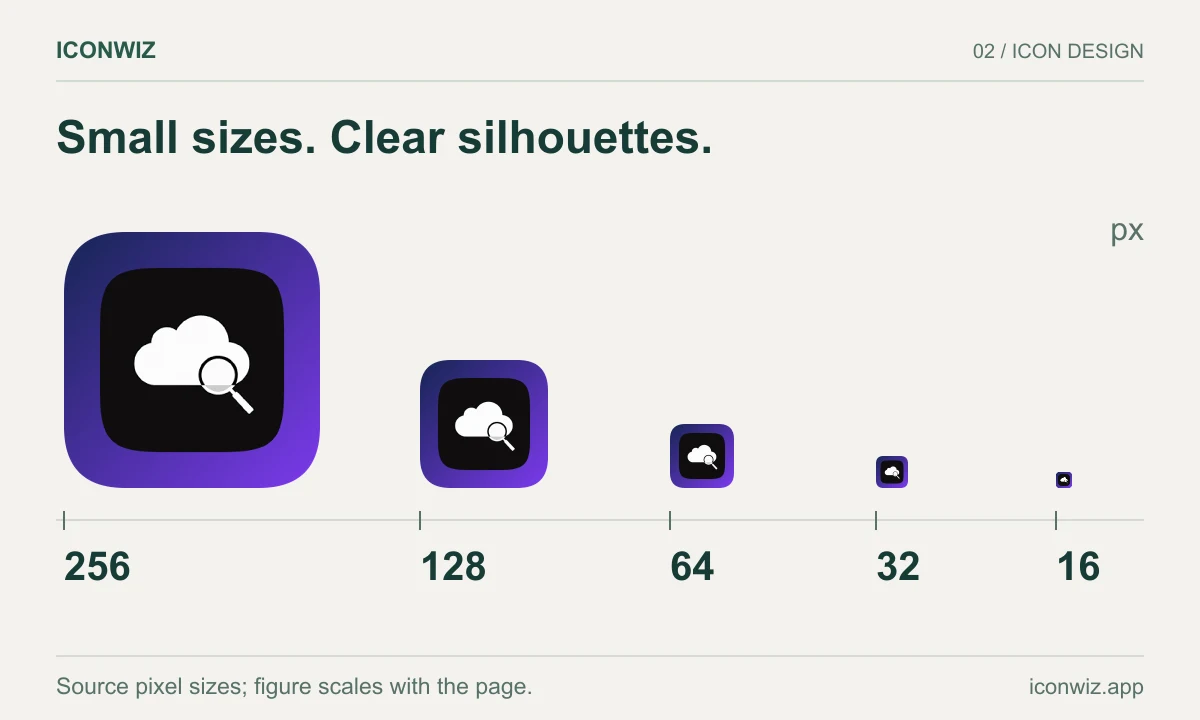
Start with a square source with one clear subject. Tiny lettering and fine outlines often disappear at 16 pixels. In the favicon generator, open the editor, import your image and choose Web. Adjust scale and padding, then inspect 16- and 32-pixel previews before exporting. A larger source cannot compensate for an overly complicated design.
Export and place the files
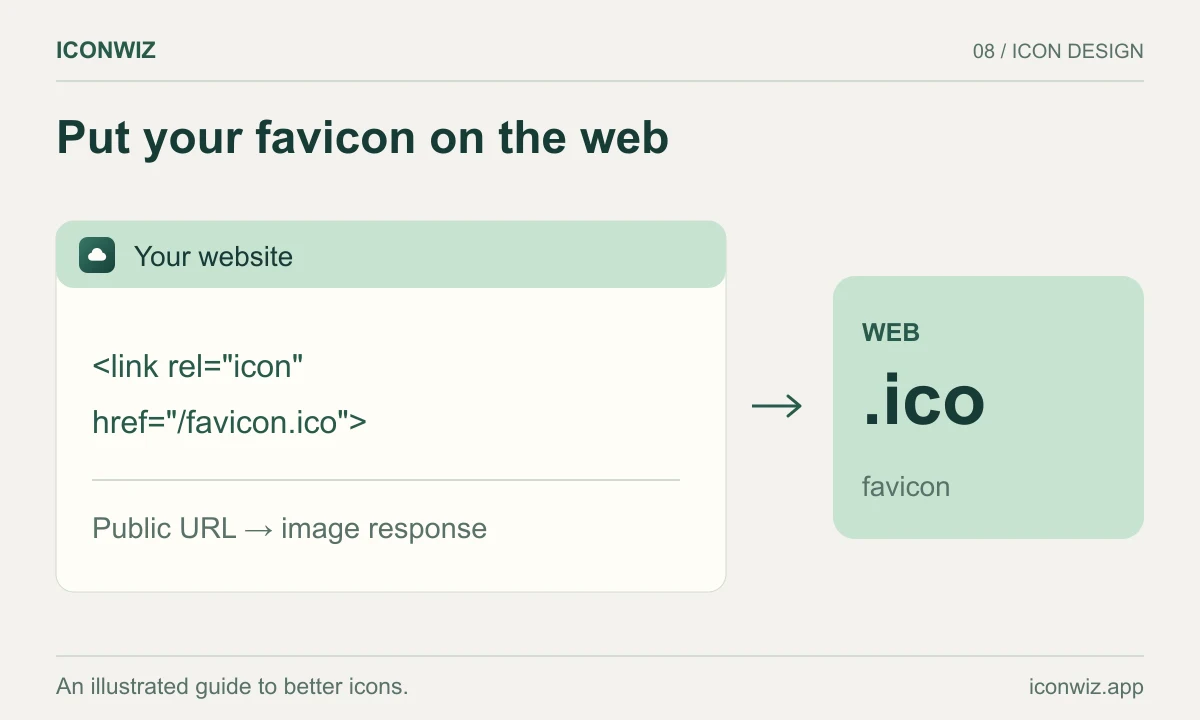
Download the ZIP and extract it. The Web preset includes favicon.ico and PNG files such as favicon-32x32.png and favicon-180x180.png. Copy them into your site's public asset directory. If your archive has a platform subfolder, extract the files you intend to serve rather than copying the ZIP itself.
For a plain HTML page, add these links inside head:
<link rel="icon" href="/favicon.ico" sizes="any">
<link rel="icon" type="image/png" sizes="32x32" href="/favicon-32x32.png">
<link rel="apple-touch-icon" sizes="180x180" href="/favicon-180x180.png">
Keep URL paths consistent with the location where you actually deployed each file. If you use a subpath deployment, root-relative URLs may need your base path.
Configure Next.js without competing definitions
In an App Router project, place files in public and declare icons in metadata, or use Next.js file conventions. Pick the approach that matches your existing project and check for an older app/favicon.ico that could supply a different icon.
export const metadata = {
  icons: {
    icon: [
      { url: '/favicon.ico' },
      { url: '/favicon-32x32.png', sizes: '32x32', type: 'image/png' },
    ],
    apple: [{ url: '/favicon-180x180.png', sizes: '180x180' }],
  },
};
See the Next.js icon file conventions and the HTML link reference.
Diagnose an old or missing icon
- Open each icon URL directly. Check the status, MIME type and image; a fallback HTML page with status 200 is not an icon.
- Inspect the page head for duplicate or outdated icon links.
- Test a fresh browser profile. Browser tab and bookmark icons can outlive an ordinary page reload.
- Check the deployed asset cache. If needed, use a new versioned filename and update its link; avoid repeatedly changing unrelated settings.
A search result favicon can update later than a browser tab. Confirm crawl access and follow Google's favicon guidance without assuming immediate refresh.
Next steps
Use the PWA icon generator for installable app icons, which are configured in a web app manifest. The PWA manifest tutorial explains standard and maskable entries.