GPT Image 2.5 Flare and Sunburst are now available in Iconwiz for image generation and reference-based editing. They appear first in the model selector, with the price shown alongside each output quality option. The same controls are included in Iconwiz Desktop 0.20.0 for macOS.
Open the AI icon editor to turn a prompt or reference image into a design, then adjust its composition and export platform icons.
Flare or Sunburst: which should you choose?
OpenAI describes Flare as a fast model for high-quality everyday image generation. Sunburst is its most capable model for image generation and editing. In Iconwiz, both support prompts, reference images and the same quality choices.
| Model | A useful starting point | Available in Iconwiz |
|---|---|---|
| GPT Image 2.5 Flare | Exploring icon concepts and everyday variations | Generation and editing |
| GPT Image 2.5 Sunburst | Detailed briefs and careful reference-based refinements | Generation and editing |
Try the same prompt and reference with each model when consistency matters. These are workflow suggestions; the result still depends on the brief, reference and selected quality. A more expensive quality setting does not guarantee a more readable icon at 16 pixels.
Output quality and credits per image
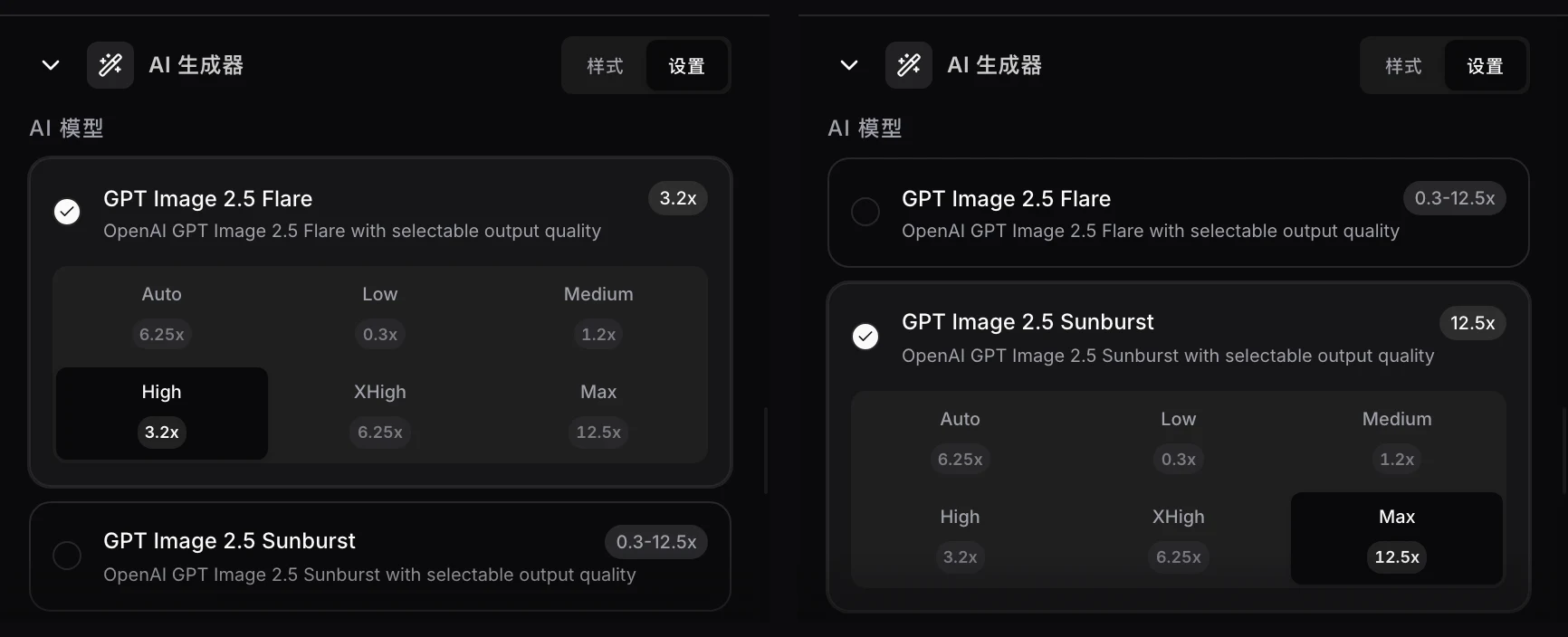
Flare and Sunburst use the same pricing in the Iconwiz generation and editing panels:
| Output quality | Credits per image | Suggested use |
|---|---|---|
| Low | 0.30 | Explore a subject, silhouette or color direction |
| Medium | 1.20 | Compare promising concepts with a modest budget |
| High | 3.20 | Refine a direction you want to keep |
| XHigh | 6.25 | Try a higher quality setting for demanding details |
| Max | 12.50 | Use the highest selectable quality for a final comparison |
| Auto | 6.25 | Let the model choose output quality |
Auto is charged at the displayed 6.25 credits per image; it is not a free setting or a promise of Low pricing. For example, four Medium images cost 4.80 credits, while two High images cost 6.40 credits. Generation and AI editing require sign-in and credits. See plans and credits for purchase options.
The table describes Iconwiz credit consumption as of September 9, 2026. The selector shows the current price before you submit. Provider details are available on the Replicate pages for Flare and Sunburst.
A prompt-to-icon workflow
- Open the editor and choose AI generation. Select GPT Image 2.5 Flare or GPT Image 2.5 Sunburst at the top of the model list.
- Choose an output quality and check the credit total for the number of images you want.
- Describe one subject, its visual style and a small set of colors. Add a reference image when an existing design should guide the result.
- Generate, compare the candidates, and open your preferred image in the icon editor. Use AI editing for changes to the artwork and ordinary editor controls for scale, background and shadows.
- Check the design at small sizes, then export PNG or a platform resource ZIP.
For a starting concept, try:
A square app icon for a reading tracker: one bold open-book symbol, warm ivory on a deep teal background, simple geometric shapes, centered with generous breathing room, clear at small sizes, no text, no device mockup.
For a reference-based edit:
Keep the book silhouette and teal color from the reference. Simplify the internal lines, remove tiny decorative details, and leave more space around the symbol. Keep the design centered and do not add lettering.
From generated artwork to an app icon or favicon
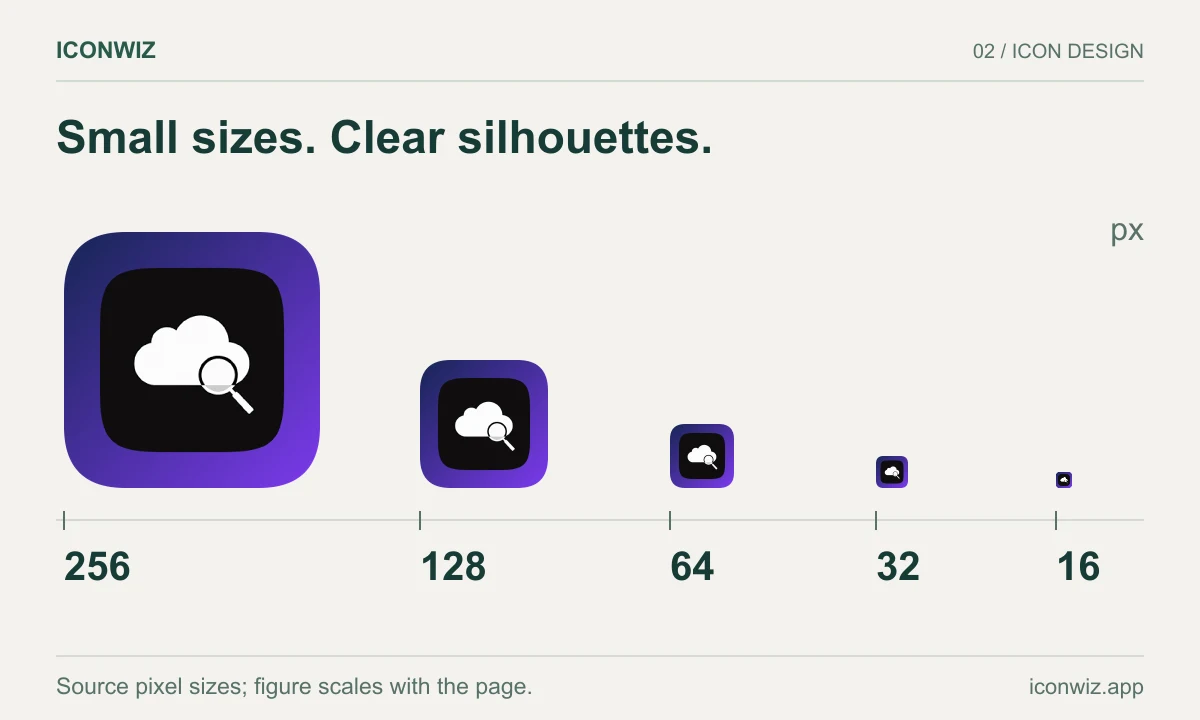
An AI output is source artwork. A usable platform icon also needs suitable padding, background and export dimensions. For a logo concept, inspect the shape and any lettering before using it. For a favicon, favor a bold silhouette that stays recognizable at 16 and 32 pixels.
Use the favicon installation guide for websites, the iOS and Xcode guide for Apple apps, or the Android launcher icon guide for Android projects. Ordinary icon editing and export remain free and do not consume AI credits.
Also in Iconwiz Desktop 0.20.0
The new minor release brings both models, the quality controls and their visible prices to the desktop editor. Download Iconwiz for macOS, or use the web editor to try the workflow in your browser.