Choose the asset workflow your project uses
This tutorial covers conventional PNG AppIcon asset catalogs. It does not generate a layered Icon Composer document. Check your project's current Xcode asset setup before replacing files, and keep a backup of the existing AppIcon set.
Open the iOS icon generator. Use a high-resolution square source, ideally large enough for the 1024-pixel artwork. Do not enlarge a tiny screenshot and expect new detail.
Prepare a square, opaque composition
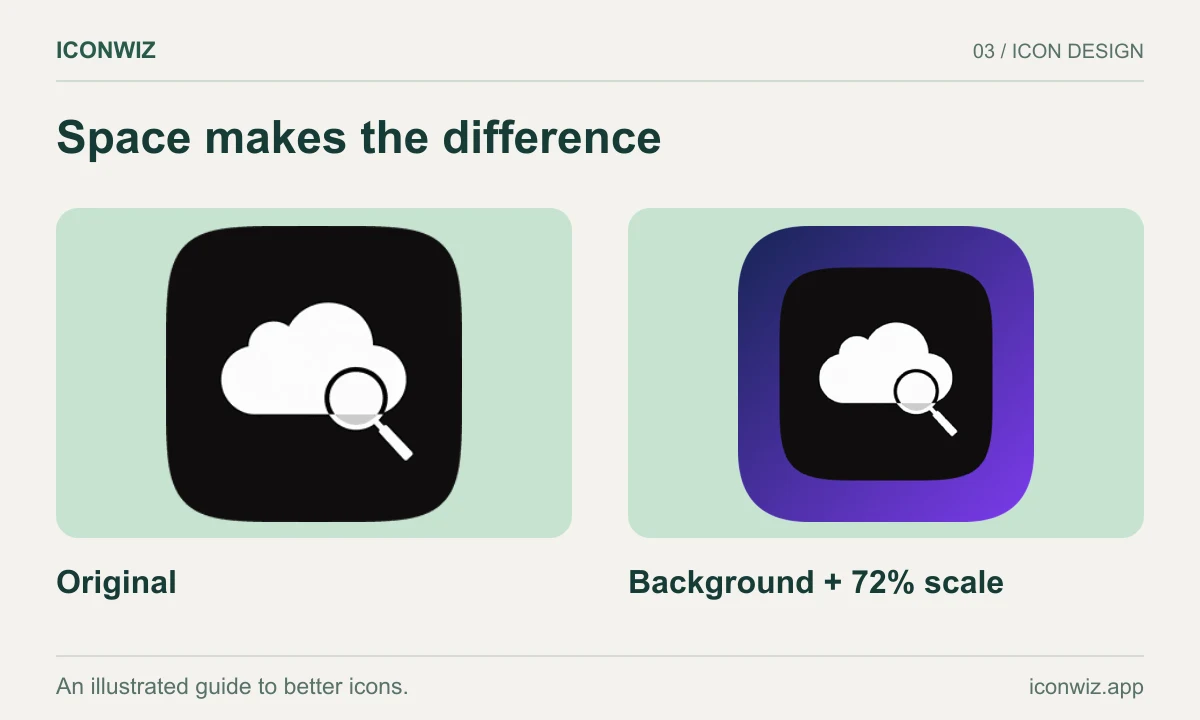
Place the artwork on an opaque background. Avoid baking transparent rounded corners into an ordinary iOS icon: the system applies its display mask. Keep the subject away from the edges and check both large and small previews. If the original has transparency, inspect the exported result to ensure the intended background is present.
Export the iOS preset
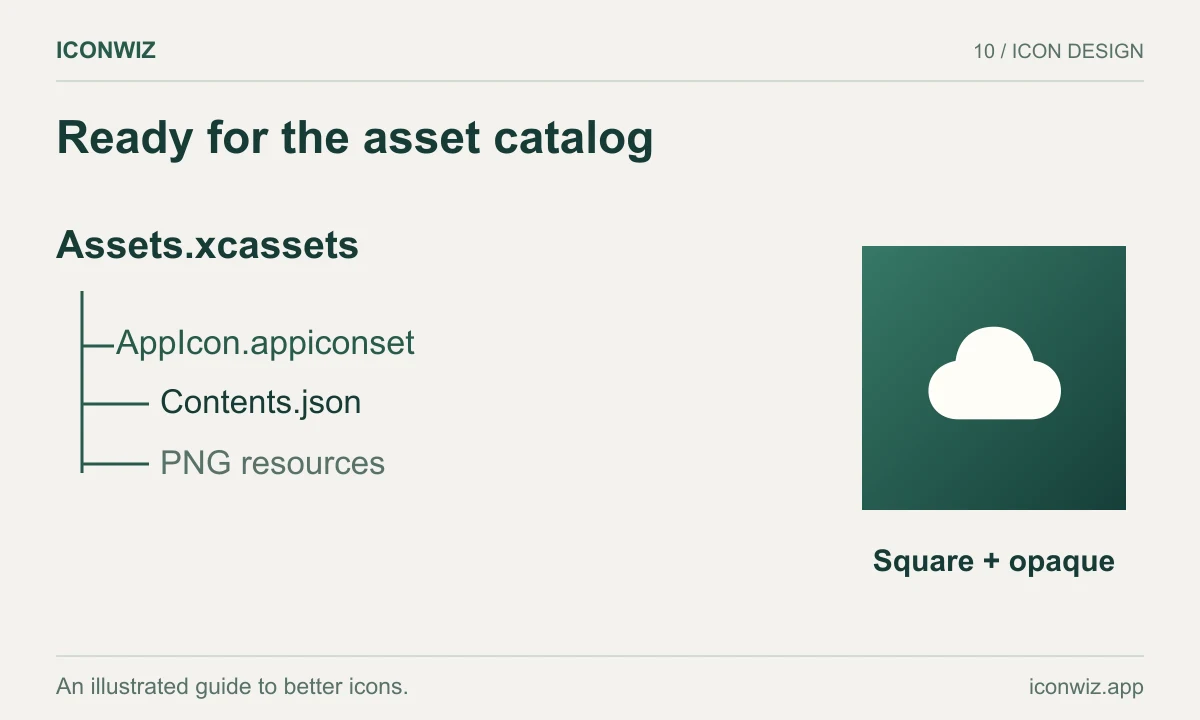
Choose iOS and export the default set for the first integration. Extract the ZIP and locate:
Assets.xcassets/
  AppIcon.appiconset/
    Contents.json
    ... PNG resources
Contents.json maps filenames to icon slots. Keep it beside the generated PNG files. If you customize size selection, verify that the resulting asset catalog still contains the resources your project needs.
Import and select the asset set
- Open your asset catalog in Xcode.
- Replace or import the generated AppIcon.appiconset, preserving a backup outside the active catalog.
- Select the application target and check its App Icon Source setting points to the intended set.
- Build and inspect asset warnings. Test the installed app on a simulator or device.
A duplicate AppIcon name or an old target setting can make a correct export appear unused. Check the catalog reference before repeatedly regenerating assets. Store submission checks remain part of your Xcode and App Store workflow.
Read Apple's app icon configuration documentation and app icon design guidance.
Framework projects
For a Flutter application, use the Flutter preset, which organizes resources for its platform projects. For the Android side of a multi-platform app, follow the Android launcher tutorial. Keep the brand mark consistent while checking each platform's masking and spacing.