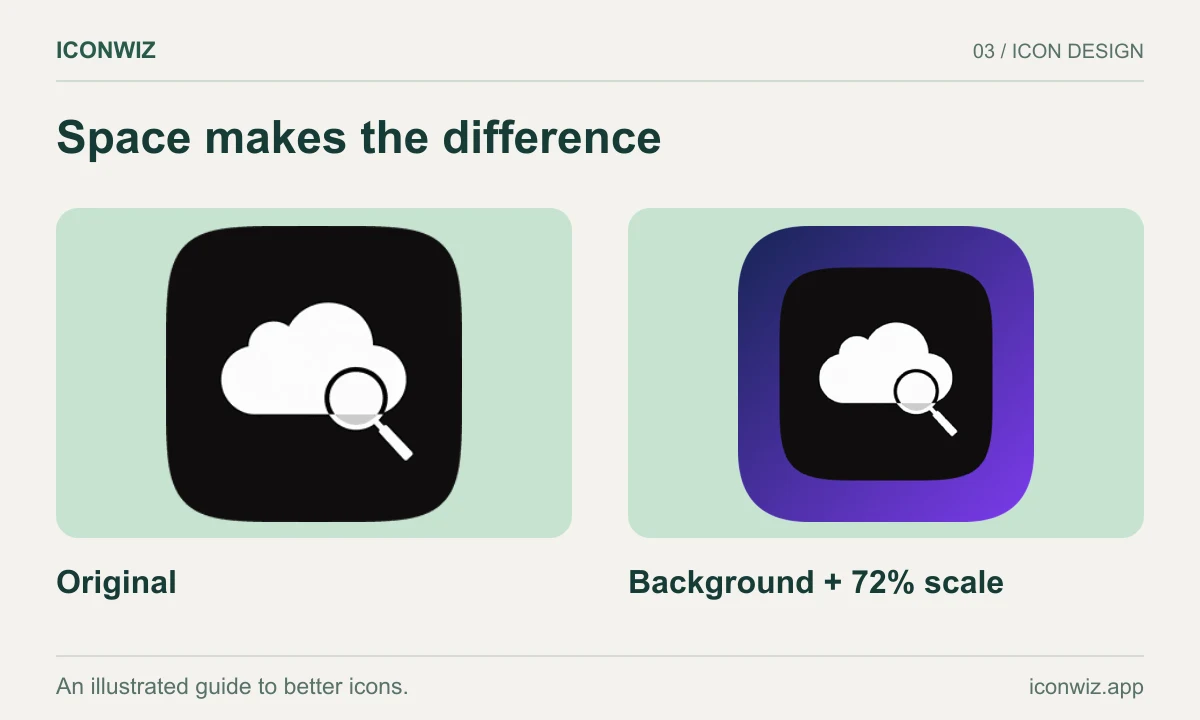
Last week, I generated what I thought was the perfect app icon. A sleek, modern design with a gradient background and a clean logo in the center. It looked great — until I tried to use it.
The problem? The background color clashed with iOS's dark mode. The icon itself was perfect, but it was baked into the image. I couldn't just swap out the background without regenerating the entire thing and hoping I'd get something similar.
This is the dirty secret of AI image generation: you rarely get exactly what you need on the first try. And even when you do, the image is flat. One layer. Take it or leave it.
That frustration led us to build the Segment feature in Iconwiz. And honestly, it's changed how I think about AI-generated icons entirely.
The Layer Problem
Traditional design tools like Photoshop or Figma work with layers. You can move things around, hide elements, swap backgrounds. It's non-destructive editing at its core.
AI image generators don't work that way. They output a single, flattened image. What you see is what you get.
This creates a real problem for icon design:
- You generate an icon with a beautiful logo but the wrong background color
- The main element is perfect, but there's a shadow you don't want
- You love 80% of the image but need to tweak the rest
The typical solution? Generate again. And again. And hope you get lucky.
A Different Approach
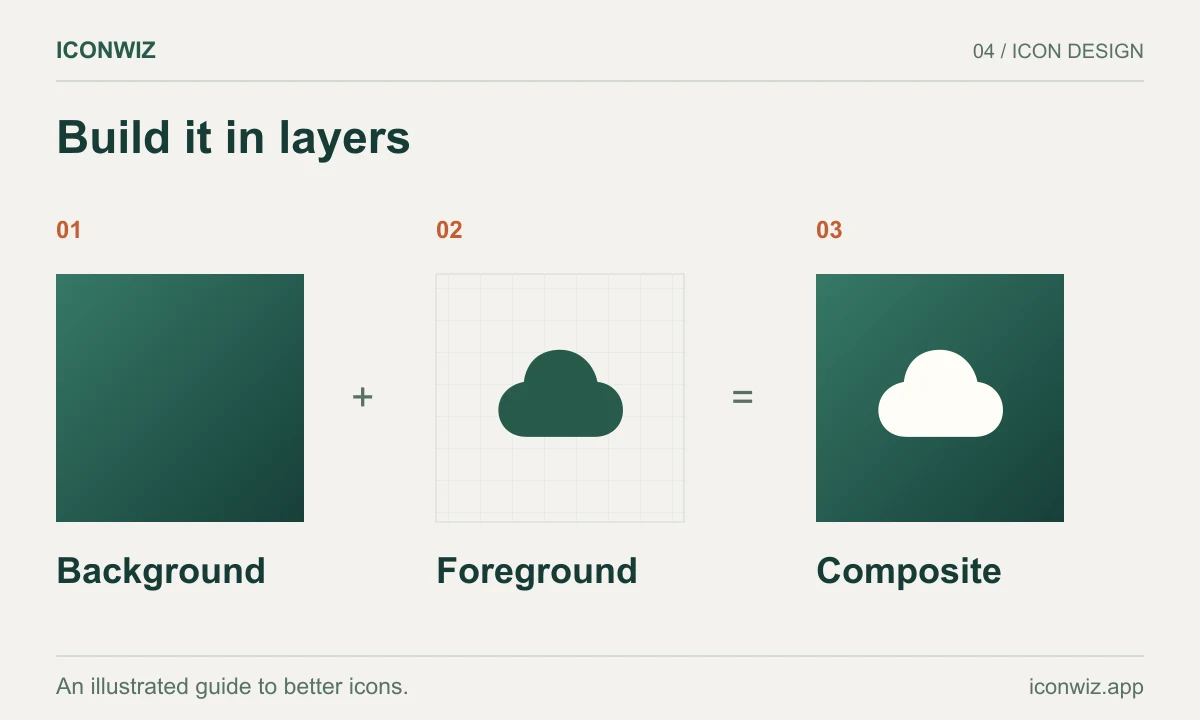
What if you could take that AI-generated image and split it into layers after the fact?
That's exactly what Segment does. It uses AI to analyze your icon and decompose it into semantic layers — typically 2 to 8 separate elements that you can manipulate independently.
Here's what that looks like in practice:
- You have an AI-generated icon you mostly like
- You run it through Segment
- The AI identifies distinct visual elements: background, main shape, shadows, highlights, decorative elements
- Each element becomes its own layer
- You toggle, reorder, or remove layers as needed
- You save the result as a new icon
It's like getting Photoshop layers from a flat image. Except you didn't have to create them manually.
When This Actually Matters
Let me give you some real scenarios where this has saved me hours:
Extracting a Logo from Its Background
I generated a logo icon that I loved, but the gradient background didn't work for my use case. With Segment, I extracted just the logo portion, hid the background layer, and saved it with transparency. Then I could apply any background I wanted in the icon editor.
Creating Icon Variations
One generation, multiple outcomes. I segmented a gaming icon and found I could create three distinct variations just by toggling different layers on and off. Same generation cost, triple the usable output.
Simplifying Complex Icons
Sometimes AI goes overboard with details. An icon that looks great at 512×512 becomes a muddy mess at 32×32. By segmenting and hiding the detail layers, I could create a simplified version that actually works at small sizes.
Fixing Small Issues
The icon was almost perfect, but there was a weird artifact in one corner. Instead of regenerating and losing what I liked, I segmented it, removed the problematic layer, and saved a clean version.
How It Works Under the Hood
The segmentation is powered by Qwen's image layering model. It's trained to understand semantic boundaries in images — where one visual concept ends and another begins.
You choose how many layers you want (2–8), and the AI does its best to find meaningful separations. Sometimes it nails it perfectly. Sometimes the layers don't split exactly where you'd expect. That's the nature of AI — it's interpretation, not magic.
The good news is you can always re-segment with a different layer count if the first attempt doesn't work. More layers usually means finer control, but also more complexity to manage.
The Workflow
Here's how I typically use this in my icon design process:
Step 1: Generate with AI
Start in the Iconwiz editor and generate your base icon. Don't worry about getting it perfect — focus on the core concept and style.
Step 2: Identify What Needs to Change
Look at the result. What works? What doesn't? Is it the background? A specific element? The overall composition?
Step 3: Segment
Open the segment tool and choose your layer count. Four layers is usually a good starting point — enough granularity without overwhelming options.
Step 4: Edit Layers
Once segmentation completes, you'll see each layer as a separate thumbnail. Toggle visibility to see what each layer contains. Drag to reorder if you want to change the stacking. Delete what you don't need.
Step 5: Save and Continue
Save your edited composite as a new material. Now you can take it to the icon editor for final adjustments — add your own background, apply shapes, export for all platforms.
The Economics
Segmentation costs credits based on how many layers you request. It's roughly 0.75 credits base plus 0.25 per layer. So a 4-layer segmentation runs about 1.75 credits.
Is it worth it? Depends on your workflow. If you're iterating heavily and find yourself regenerating the same concept multiple times, segmentation can actually save credits by letting you remix existing generations instead of starting from scratch.
Check the pricing page for current credit costs and subscription options. Segmentation is available on Basic and Pro plans.
What It Won't Do
Let me be honest about the limitations:
It's not perfect separation. The AI interprets layer boundaries semantically, but it doesn't always match what you'd manually separate. Sometimes a shadow gets grouped with the object casting it. Sometimes background elements bleed into foreground layers.
It can't add what isn't there. If your icon is missing something, segmentation won't help. You still need to regenerate or edit manually.
Complex icons segment better. A simple flat icon might only meaningfully separate into 2–3 layers regardless of how many you request. The AI needs visual complexity to find boundaries.
Putting It Together
The real power of Segment isn't the feature in isolation — it's how it fits into the broader workflow.
Generate → Segment → Edit → Export
Each step builds on the previous. You're not just hoping for a perfect output from AI. You're treating AI generation as a starting point and refining from there.
This is closer to how professional design actually works. You iterate. You adjust. You combine elements in new ways. The difference is that AI handled the hard part of creating the initial visual, and segmentation gives you back the control you need to finish the job.
Try It Yourself
If you've been frustrated by the all-or-nothing nature of AI image generation, give segmentation a try. Open the editor, generate an icon, and see what layers the AI finds.
You might be surprised at what becomes possible when you can take apart what you've created.
For questions about how segmentation works with different types of icons, check our FAQ or reach out to support. We're constantly improving how the AI identifies layer boundaries, and user feedback helps us prioritize what to work on next.