Last month, a developer friend showed me his workflow for creating app icons. He had Photoshop open with 47 layers, a spreadsheet tracking export sizes for different platforms, and three hours of frustration written across his face. The icon itself was simple — a stylized letter with a gradient background and a subtle shadow.
That's when I realized something: most icon design tools are built for general-purpose graphics work, not specifically for icons. They give you infinite flexibility but zero guidance. You end up fighting the tool instead of designing.
We built the Iconwiz editor with a different philosophy. Every feature exists because icons need it. Nothing more, nothing less.
The Layer System That Actually Makes Sense
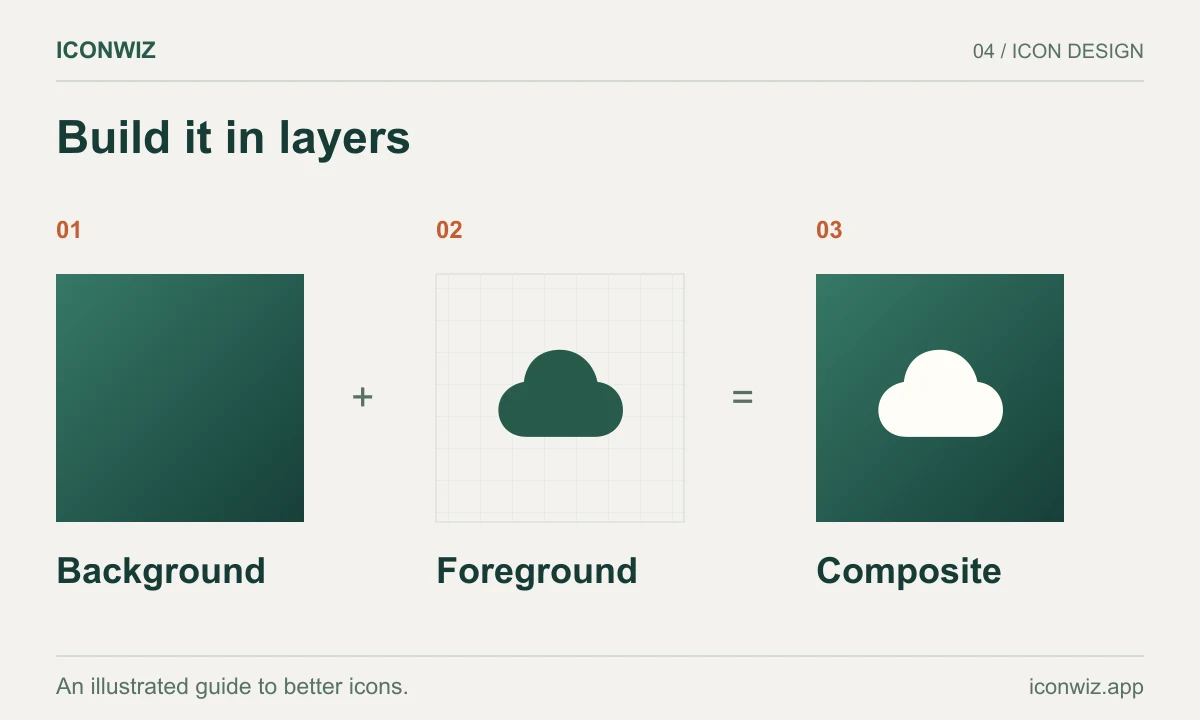
Most icons are surprisingly simple when you break them down: an icon element, a background, maybe a shadow. But the devil is in the details of how those pieces interact.
In Iconwiz, backgrounds are built from stackable layers. Each layer can be:
- A solid color
- A linear gradient (with angle control from 0° to 360°)
- A radial gradient (with adjustable center position)
You can add as many layers as you need and drag them to reorder. Each layer has its own shape (square, rounded, circle, or Apple's signature squircle), its own margin, even its own rotation.
Here's where it gets interesting: every layer remembers its previous settings. Switch from a gradient to solid color, then back to gradient — your gradient stops are still there. This sounds minor until you're iterating on a design and realize you didn't lose twenty minutes of tweaking.
Gradients Without the Headache
If you've ever tried to create a gradient in a general design tool, you know the pain. Color stops that won't cooperate. Angles that don't match what you see in your head. The constant back-and-forth between the gradient editor and the preview.
The gradient controls in Iconwiz are purpose-built for icons. Linear gradients have a simple angle slider — 0° to 360° — with the preview updating in real time. Radial gradients let you position the center point with X/Y sliders, so you can create off-center glows or highlight effects without guessing.
Add multiple color stops, adjust their positions, and watch the icon update instantly. There's no separate preview window. No "apply" button to click. Just direct manipulation of what you're building.
Shadows That Look Right at Every Size
Shadows on icons are tricky. Too subtle and they disappear at small sizes. Too strong and they overwhelm the design. And then there's the question of what kind of shadow fits your aesthetic.
We support two shadow types:
Soft shadows give you that lifted, floating effect. Control the blur radius, the X/Y offset, the opacity, and the color. It's the classic drop shadow, but tuned for the specific needs of icon design.
Long shadows are that distinctive style you see in flat design icons — a hard-edged shadow extending at an angle behind the element. Adjust the angle, the length, and the opacity. It's a specific look, and when you need it, having a dedicated control beats trying to fake it with multiple layers.
Both shadow types can be toggled on and off, so you can preview your icon with and without shadows to see what works best.
Transform Controls for Pixel-Perfect Placement
Sometimes the icon element isn't quite right. Maybe it needs to be slightly larger, or rotated a few degrees, or nudged up a bit to balance the composition.
The transform panel gives you:
- Scale: 0% to 200%, so you can shrink or enlarge the icon element within the frame
- Rotation: Full -360° to +360° control, useful for dynamic angles or correcting slightly tilted source images
- Position offset: Nudge the element left, right, up, or down within the canvas
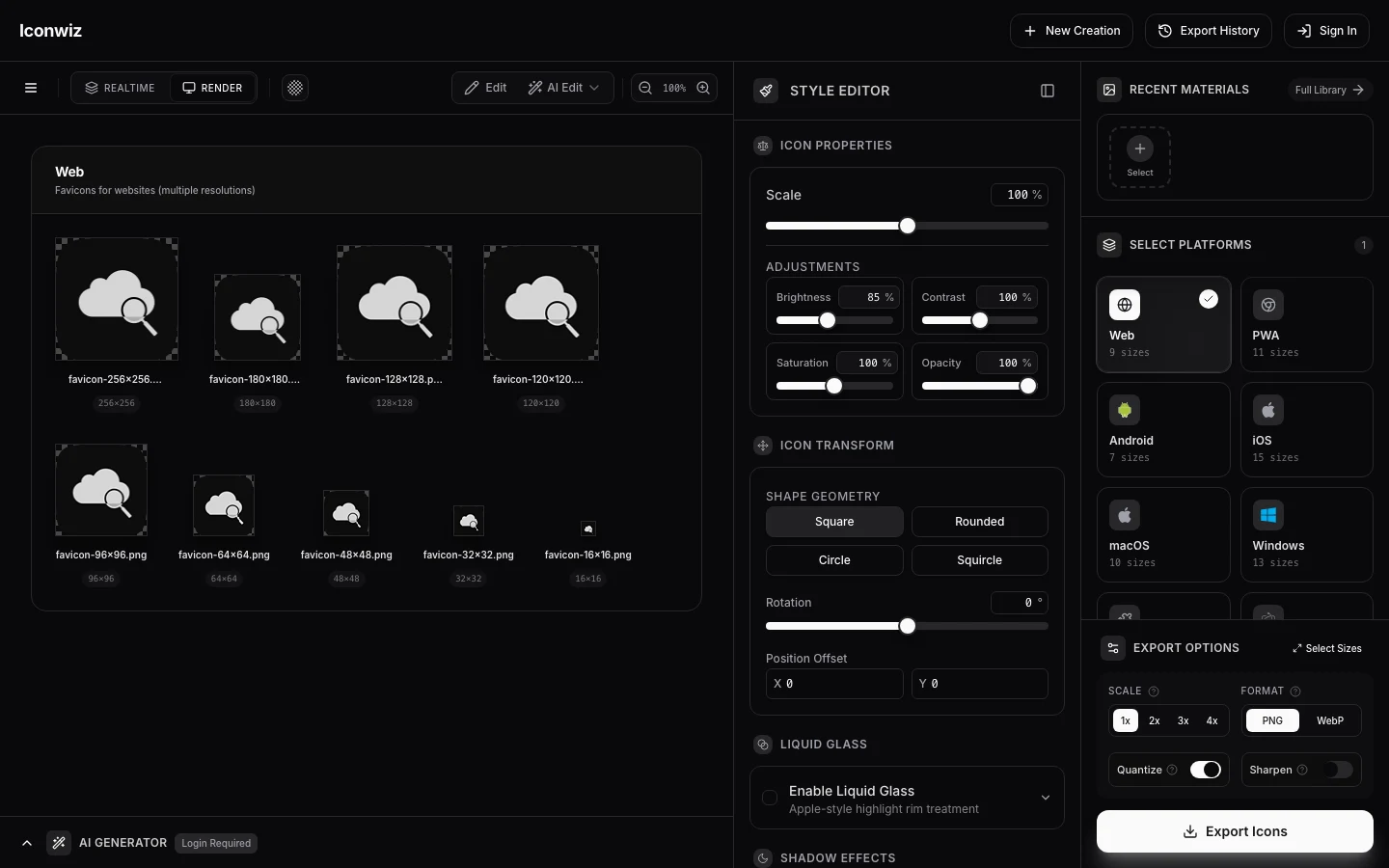
These aren't just "nice to have" features. When you're exporting an icon at 16×16 pixels for a favicon and 512×512 for the App Store, small alignment issues become obvious. The ability to fine-tune placement at the source means every export looks intentional.
Export to 12 Platforms in One Click
Here's where Iconwiz really diverges from general design tools. You're not just exporting "an image." You're generating a complete icon set.
Select your platforms — iOS, Android, Web, PWA, macOS, Windows, Electron, Flutter, Tauri, React Native, Godot, or Mini-Program — and Iconwiz generates every required size. iOS alone needs nearly a dozen sizes. Android needs standard and adaptive variants. Windows wants ICO format. macOS needs ICNS.
You choose the scales (1x, 2x, 3x, 4x), the formats (PNG or WebP), and whether to apply optimizations like PNG quantization or sharpening. Then you get a single ZIP file with everything organized into folders.
The alternative is doing this manually. For every icon. Every time you make a change. Trust me — automation here isn't a luxury, it's a sanity requirement.
When to Use What
Let me share some practical patterns I've developed:
For iOS and macOS apps, use the squircle shape with a subtle radial gradient and soft shadow. Apple's design language emphasizes depth and materiality — the shadow helps your icon feel "present" on the home screen.
For Android, consider using the circle shape since many launchers mask adaptive icons into circles anyway. A linear gradient at 135° (top-left to bottom-right) follows common Material Design lighting conventions.
For web favicons, keep it simple. Skip the shadow entirely — it won't be visible at 16×16. Use a solid background or a very subtle gradient. Make sure the icon element has enough contrast to remain recognizable.
For game icons, this is where multi-layer backgrounds shine. Stack a solid color, then a radial gradient for a glow effect, then maybe another layer for texture. Long shadows can add that flat-design punch that stands out in app stores.
The Workflow in Practice
Here's how I typically work:
- Start with an AI-generated icon or upload your own source image
- Set the background shape and add your first layer — usually a solid color to establish the base
- Convert to gradient if needed, then adjust the angle or center position
- Add additional layers for depth (a subtle second gradient can add dimension)
- Apply a shadow — soft for realism, long for style
- Use the transform controls to fine-tune placement and scale
- Export to all target platforms
The whole process takes minutes, not hours. And because everything updates in real time, you're never waiting to see the result of a change.
What We Didn't Build
Design is as much about what you leave out as what you include. We deliberately skipped:
- Brush tools and freehand drawing (icons aren't painted)
- Text editing (if you need text, add it to your source image)
- Filters and effects beyond shadows (keep it focused)
- Unlimited undo history (we cache intelligently instead)
Every feature in the editor exists because icons specifically need it. That constraint is what makes the tool fast and focused instead of bloated and confusing.
Try It Yourself
The best way to understand the editing workflow is to experience it. Open the editor, upload an image or generate one with AI, and start playing with layers and shadows.
There's no signup required to try the basic features. See how the gradient controls feel. Test the shadow options. Export a test icon to see how the multi-platform generation works.
If you've been struggling with Photoshop or fighting with generic design tools, you might find that a purpose-built icon editor is exactly what you needed.
Check out the pricing page for subscription details, or visit our FAQ if you have questions about specific features. We're building this tool for developers and designers who need icons — not people who need another general graphics editor.
A reproducible edit to try
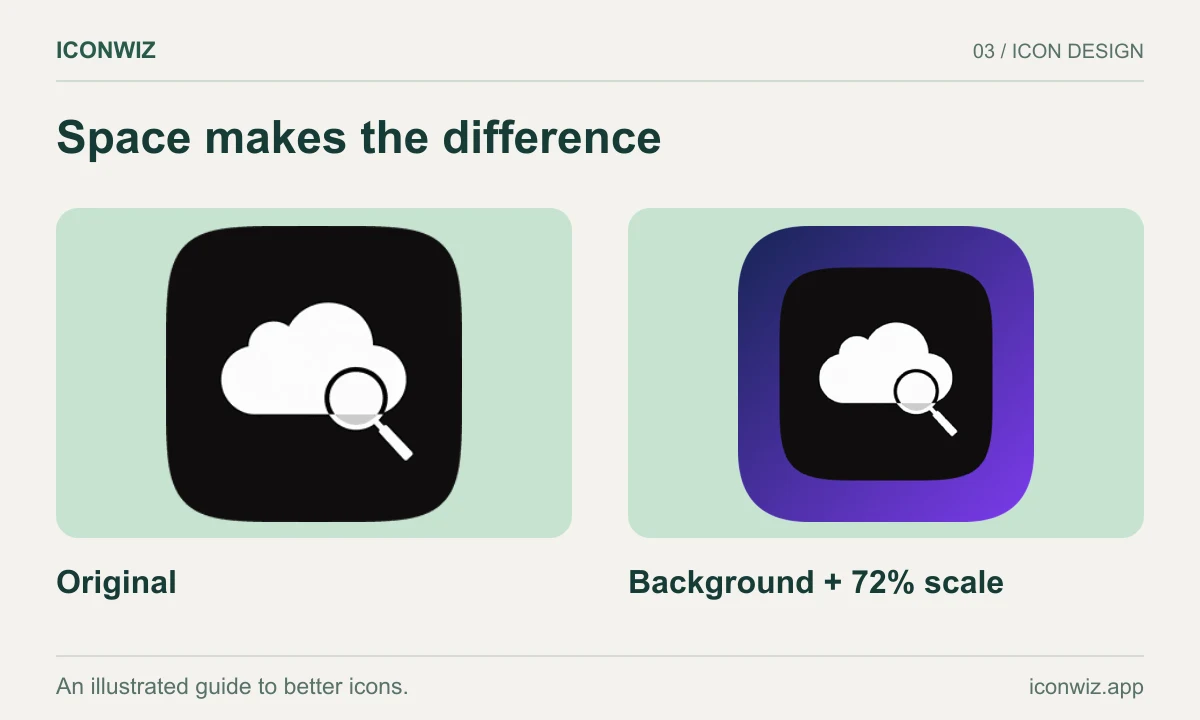
Open the online icon editor and import a local image with New Creation. Add a gradient background and reduce the source scale until the silhouette has breathing room. Change brightness only after checking the contrast with that background. Render again after each substantial adjustment.
Inspect a small preview as well as the large canvas. If the shadow obscures the outline, reduce its opacity or blur. If the subject is too small, increase scale rather than cropping the exported file afterwards. Keep a copy of the original artwork so an unwanted edit is easy to undo or recreate.
Use Export as PNG when you need a reusable flat image. For application resources, select a platform and export its ZIP. The favicon setup guide and iOS integration tutorial explain what to do with the downloaded files.
Know the boundary of image-layer editing
This workflow changes composition and appearance; it does not edit vector path nodes or repaint individual pixels. Ordinary editing and exports are free. AI generation or AI editing is a separate request that requires sign-in and credits. See Apple's app icon guidance and Android icon guidance before committing to platform-specific masks.