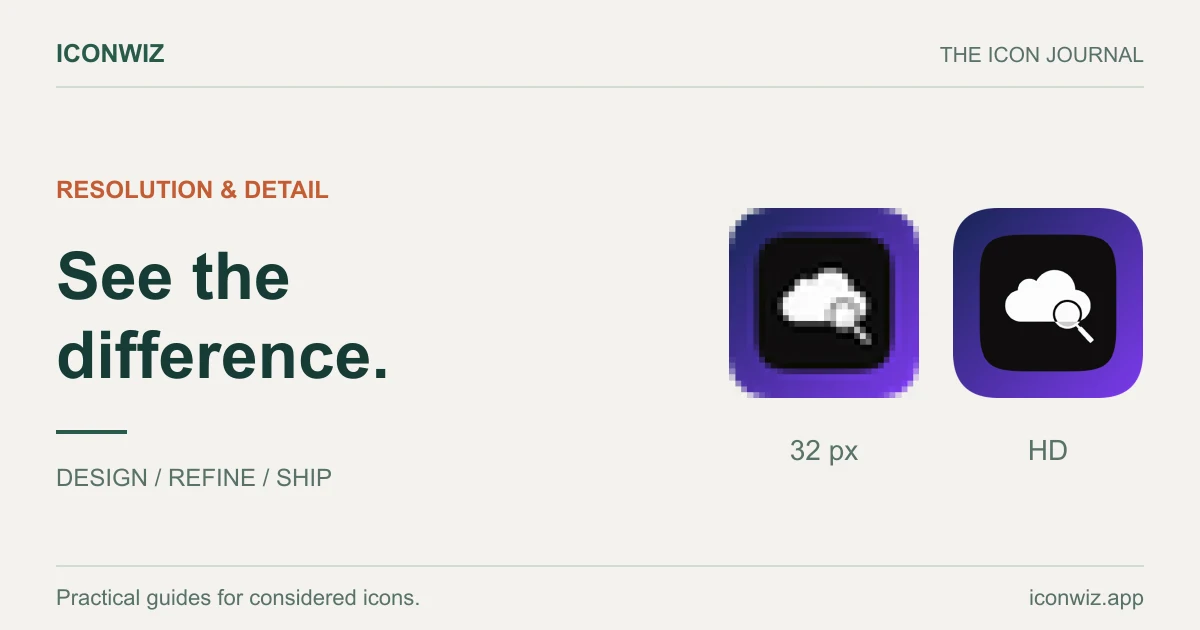
Last week I generated what I thought was the perfect app icon. Clean design, great colors, exactly the vibe I wanted. Then I tried to submit it to the App Store.
Rejected. The icon was 512×512, but Apple wants 1024×1024 for the App Store listing. I could have just scaled it up in Photoshop, but we all know how that ends — blurry edges, mushy details, that unmistakable "this was upscaled badly" look.
This is a problem I keep running into. AI image generators are amazing at creating concepts, but they don't always output at the resolutions app stores demand. And the gap between "good enough for a mockup" and "production-ready" is bigger than it seems.
The Resolution Problem
Here's the situation most of us face:
Apple's App Store wants a 1024×1024 icon. Google Play wants 512×512 (though higher is better). If you're building for multiple platforms, you need icons at dozens of different sizes — some as small as 29×29, others as large as 1024×1024.
Meanwhile, many AI image generators output at fixed resolutions. Some cap at 512×512. Others go up to 1024×1024 but charge more for it. And even when you can generate at high resolution, the results aren't always better — sometimes the AI just produces a blurrier version of what it would have made at lower resolution.
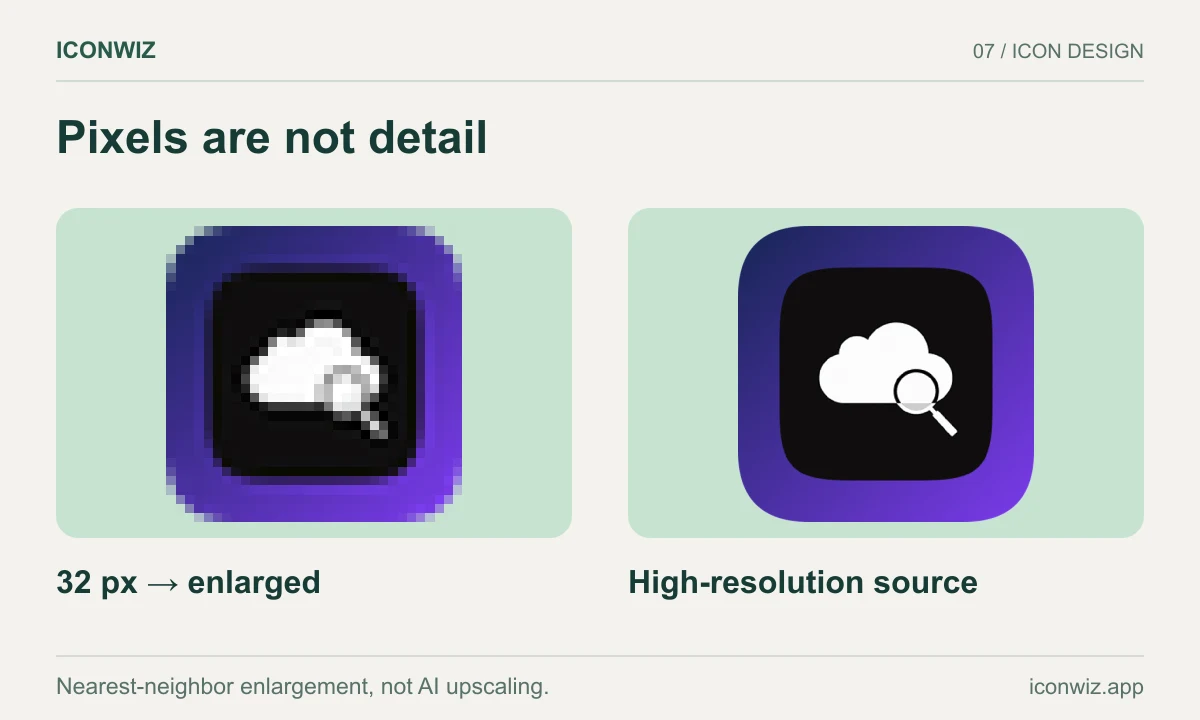
The traditional solution is to generate at whatever resolution you can, then manually upscale in Photoshop or similar. But traditional upscaling is just interpolation — it guesses what pixels should go between existing pixels. The result is always softer than the original.
Why AI Upscaling Is Different
AI upscaling doesn't interpolate. It reconstructs.
The difference matters. When you use bicubic upscaling in Photoshop, the algorithm looks at neighboring pixels and averages them to create new ones. It's mathematically sound but visually disappointing — you get smooth gradients where there should be sharp edges.
AI upscalers have been trained on millions of images. They've learned what sharp edges look like, what clean gradients look like, what fine details look like. When they upscale your image, they're not just averaging pixels — they're predicting what a higher-resolution version of your image should look like based on everything they've learned.
The practical result: you can take a 512×512 AI-generated icon and upscale it to 1024×1024 or even 2048×2048 without the usual quality loss. Sometimes the upscaled version actually looks better than the original because the AI adds detail that wasn't there before.
The Catch
AI upscaling isn't perfect. It's making predictions, and predictions can be wrong.
I've seen upscalers add texture where there shouldn't be any. I've seen them sharpen edges so aggressively that the icon looks over-processed. I've seen them completely mangle text and fine details.
The key is understanding what AI upscaling is good at and what it struggles with:
Good at:
- Clean geometric shapes
- Solid colors and simple gradients
- Bold, simple designs
- Icons without text
Struggles with:
- Fine text and letterforms
- Complex textures
- Photographic elements
- Very detailed illustrations
For most app icons — which tend to be simple, bold, and geometric — AI upscaling works remarkably well.
A Practical Workflow
Here's how I actually use AI upscaling for app icons:
Generate at the highest quality you can afford
If your AI generator offers multiple output resolutions, start with the highest one. Even if you're going to upscale later, starting with more detail gives the upscaler more to work with.
That said, don't bankrupt yourself chasing resolution. A well-designed 512×512 icon will upscale better than a poorly-designed 1024×1024 one.
Evaluate before upscaling
Look at your generated icon critically. Is the design solid? Are the shapes clean? Is there anything that looks off?
Fix problems at this stage if you can. Upscaling amplifies everything — including flaws. A slightly wonky edge at 512×512 becomes a very wonky edge at 2048×2048.
Choose the right upscaler for your icon
Different upscaling models have different characteristics:
Real-ESRGAN is fast and cheap. It handles clean, graphic icons well but can struggle with subtle gradients. Good for: flat design, solid colors, simple shapes.
Google Upscaler produces smoother results with better gradient handling. It's slower and more expensive but worth it for icons with color transitions. Good for: gradients, glass effects, subtle shading.
Recraft Crisp maximizes sharpness. It's aggressive about edge definition, which can look great on geometric icons but harsh on softer designs. Good for: sharp edges, high contrast, bold graphics.
Recraft Creative adds artistic enhancement during upscaling. It can actually improve your icon, adding subtle details and refinement. Results are less predictable but sometimes surprisingly good. Good for: when you want the AI to "finish" your design.
Topaz Labs is the premium option with the most sophisticated processing. It handles a wide range of styles well but costs significantly more. Good for: when quality matters more than cost.
Upscale conservatively
You don't always need to go from 512 to 2048 in one jump. Sometimes 512 → 1024 produces better results than 512 → 2048.
If you need very high resolution, consider upscaling in steps: 512 → 1024, evaluate, then 1024 → 2048. Each step lets you catch problems before they compound.
Inspect the results carefully
After upscaling, zoom in to 100% and look at the details. Check edges for artifacts. Look at gradients for banding. Make sure text (if any) is still readable.
Common problems to watch for:
- Halos around edges (over-sharpening)
- Texture in areas that should be smooth
- Color shifts in gradients
- Mangled fine details
If you see issues, try a different upscaler or different settings. Sometimes Real-ESRGAN produces artifacts that Google Upscaler doesn't, or vice versa.
Platform-Specific Considerations
Different platforms have different requirements, and those requirements affect how you should approach upscaling.
iOS / App Store
Apple wants 1024×1024 for the App Store, but your app also needs icons at 20, 29, 40, 60, 76, 83.5, and 1024 points (with @2x and @3x variants). That's a lot of sizes.
The good news: if you have a clean 1024×1024 master, scaling down to smaller sizes usually works fine. The challenge is getting that clean 1024×1024 in the first place.
For iOS, I recommend upscaling to at least 1024×1024, then using that as your master for all other sizes.
Android / Google Play
Google Play's requirement is 512×512, which most AI generators can hit directly. But Android adaptive icons complicate things — you need separate foreground and background layers, and the visible area is masked to different shapes on different devices.
If you're using AI-generated icons for Android, make sure your design works when cropped to a circle (some launchers do this). Upscaling won't help if the composition doesn't work with the mask.
macOS
macOS icons can go up to 1024×1024 (or 512×512 @2x). The ICNS format bundles multiple sizes together.
macOS icons traditionally have more detail than mobile icons — drop shadows, subtle gradients, quasi-3D effects. AI upscaling handles these reasonably well, but inspect carefully for artifacts in the shadows and highlights.
Windows
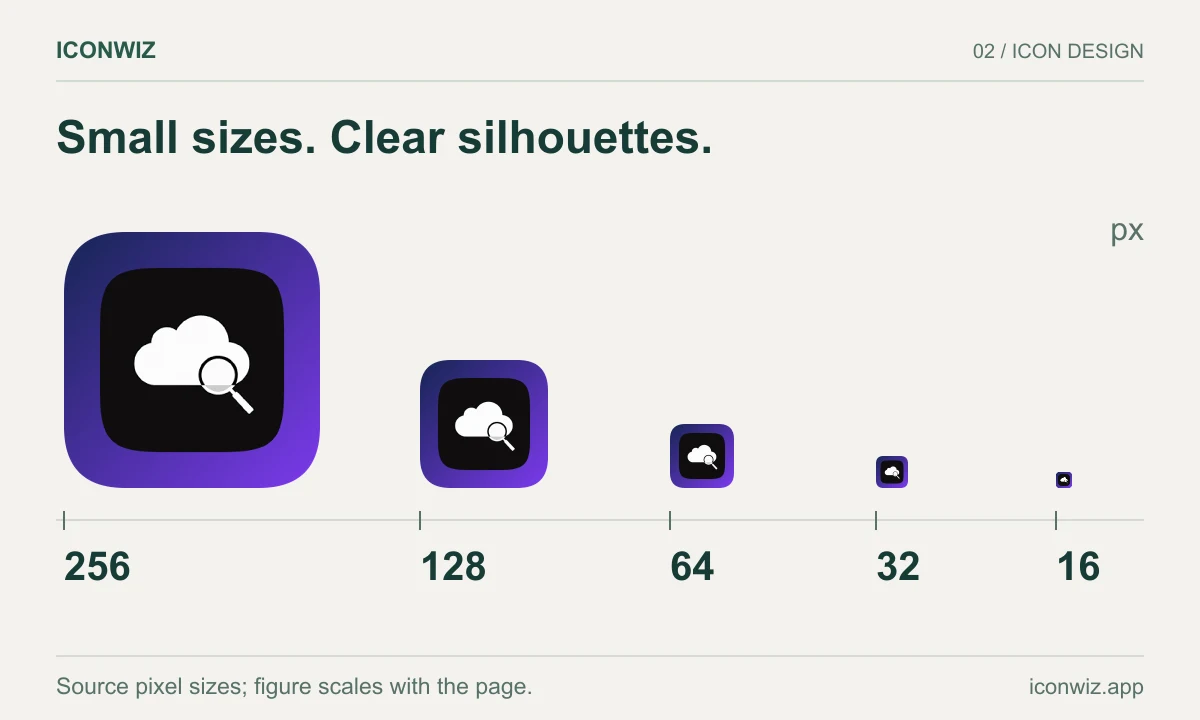
Windows ICO files can include sizes up to 256×256. The format is old and has quirks — some sizes need to be 8-bit color, others can be 32-bit with alpha.
For Windows, you usually don't need AI upscaling since the max size is relatively small. Focus on making sure your icon reads well at 16×16 and 32×32, which is where most users will see it.
When to Skip Upscaling
Sometimes upscaling isn't the answer.
If your AI generator can output at your target resolution with good quality, just use that. Upscaling adds a processing step that can introduce artifacts. Direct generation at target resolution is always cleaner if it's available.
If your icon has fine text, consider redesigning without text rather than trying to upscale it. AI upscalers consistently struggle with letterforms. A text-free icon that upscales cleanly beats a text icon that upscales poorly.
If you're seeing consistent artifacts across multiple upscalers, the problem might be your source image. Try regenerating with different settings or a different prompt before throwing more upscaling at it.
The Bigger Picture
AI has made icon design accessible to people who aren't professional designers. You can describe what you want and get something usable in seconds. That's genuinely transformative.
But "usable" and "production-ready" aren't the same thing. App stores have requirements. Users have expectations. The gap between a cool concept and a polished, properly-sized icon set is real.
AI upscaling bridges that gap. It lets you take the creative output of AI generation and prepare it for the technical requirements of real-world deployment. It's not magic — you still need to understand what you're doing and check your results — but it's a powerful tool in the workflow.
The Iconwiz editor includes AI upscaling as part of its toolkit, but the principles here apply to any upscaling tool. The important thing is understanding why resolution matters, what AI upscaling can and can't do, and how to evaluate results critically.
Your app icon is the first thing users see. It's worth getting right.