I shipped a blurry favicon last month. Didn't even notice until a friend sent me a screenshot of their browser tabs. There it was — my app's icon, looking like it had been through a washing machine. Pixelated edges, muddy colors, the works.
The embarrassing part? I'd spent hours getting the design right. The concept was solid. The colors were on point. But somewhere between "looks great in Figma" and "deployed to production," everything fell apart.
This is the favicon problem nobody talks about. We obsess over the design, then completely botch the technical execution.
Why Favicons Are Secretly Hard
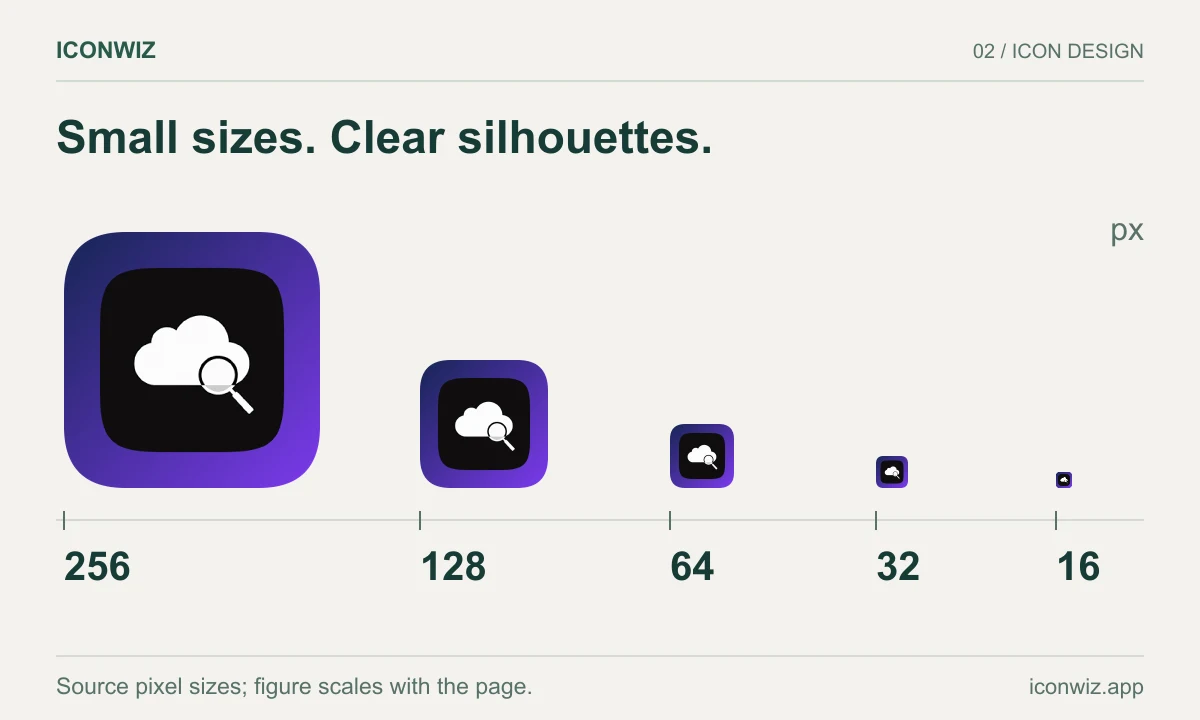
Here's what makes favicons tricky: they need to work at wildly different sizes.
Your browser tab? That's 16×16 pixels. Your bookmarks bar? 32×32. Safari's pinned tabs? 180×180. And if someone adds your site to their home screen on mobile, you're looking at 512×512 or larger.
Most designers create at one size and scale down. The problem is that scaling down loses detail. Fine lines disappear. Subtle gradients turn into color blobs. Text becomes unreadable.
But here's the thing — scaling up is even worse. If you start with a small image and try to enlarge it, you get that classic pixelated mess. Traditional upscaling just interpolates between pixels, creating a blurry approximation of what should be there.
How AI Upscaling Actually Works
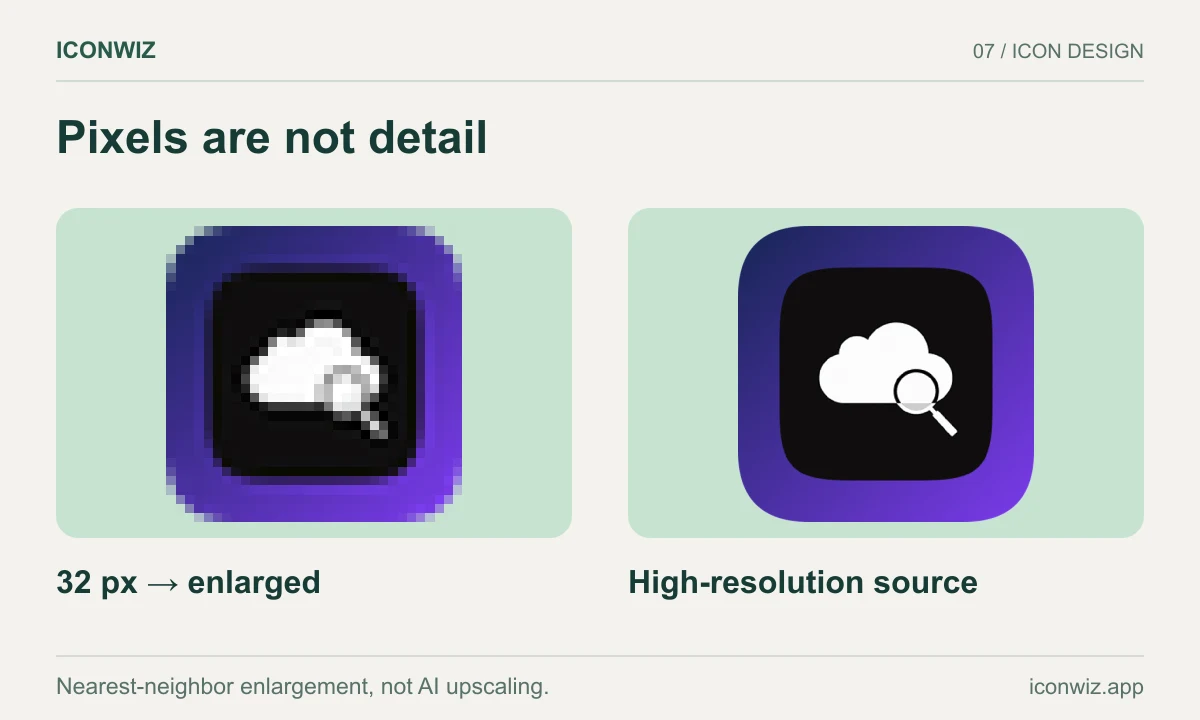
AI upscaling doesn't just make pixels bigger. It reconstructs the image at higher resolution based on what it "understands" about the content.
Think about it this way: if you show a human a tiny, pixelated image of a circle, they can imagine what a crisp, high-resolution circle should look like. AI upscalers work similarly — they've been trained on millions of images to recognize what sharp edges, clean gradients, and fine details should look like, then apply that knowledge to reconstruct your image.
The practical result: you can take a 64×64 favicon and upscale it to 512×512 without the usual blur. Sometimes you actually gain clarity because the AI fills in details that were lost in compression or never existed in the first place.
It's not magic, though. The AI is making educated guesses about what should be there. Sometimes those guesses are wrong — an edge gets interpreted differently than you intended, or fine text gets mangled. But for most icon work, the results are surprisingly good.
The Workflow That Actually Works
After the blurry favicon incident, I rebuilt my process. Here's what I landed on:
Start with the right resolution
This sounds obvious, but it's where most people mess up. If you're designing a favicon, don't start at 16×16 and try to scale up later. Start at 256×256 or 512×512, get the design right, then scale down.
The reason: scaling down is a lossy process, but it's predictable. You know details will disappear. Scaling up with AI is reconstructive — the AI has to guess what details should exist. Starting high gives you control.
Test at target size early
Before you fall in love with a design, shrink it to 16×16 and squint at it. Can you tell what it is? If not, simplify. No amount of upscaling will save a favicon that's too complex for its intended size.
I've thrown away designs I loved because they turned into unrecognizable blobs at small sizes. Better to find out early.
Use AI upscaling for the final master
Once you have a design that works at small sizes, upscale it to create your high-resolution master. This master becomes the source for all your exported sizes.
Different upscaling models have different strengths:
Real-ESRGAN is fast and handles clean lines well. It's the go-to for simple icons with solid colors. The main limitation is a max input resolution around 2560px, so you can't upscale already-large images.
Google's upscaler produces smoother results, especially for gradients. It's slower and costs more, but the quality difference is noticeable on complex designs.
Recraft's models come in two flavors — "Crisp" for maximum sharpness, "Creative" for artistic enhancement. The creative version can actually improve your icon, not just enlarge it, but the results are less predictable.
Topaz Labs is the premium option. Professional-grade results, but you're paying for it. Worth considering if the favicon is for something important.
Export from the upscaled master
With a high-resolution master in hand, generate all your favicon sizes from that single source. The key sizes you need:
- 16×16 — browser tabs
- 32×32 — bookmarks, Windows taskbar
- 48×48 — Windows desktop shortcuts
- 180×180 — Apple touch icon
- 512×512 — PWA manifest, Android Chrome
Some tools handle this automatically. If you're doing it manually, use a proper image editor with good downscaling algorithms — not just "resize to fit."
Things I Learned the Hard Way
File size matters more than you think. A bloated favicon.ico slows down every page load. Keep it under 100KB. If your ICO file is larger, you probably included too many sizes or didn't optimize properly.
Test against different backgrounds. Your favicon will appear on light browser themes, dark themes, and everything in between. A white icon disappears on a light background. A dark icon vanishes in dark mode. Test both.
The manifest icon is different. The 512×512 icon in your web manifest isn't just a big favicon — it's what shows up when users install your PWA. It gets displayed at various sizes on home screens, app drawers, and splash screens. This one deserves extra attention.
Safari is weird. Safari's pinned tab icon (the "mask icon") needs to be an SVG with a single color. It's a completely different asset from your regular favicon. Don't forget it exists.
When AI Upscaling Doesn't Help
AI upscaling isn't a silver bullet. It won't save:
Text-heavy favicons. If your favicon includes text, AI upscaling will probably mangle it. The models aren't great at reconstructing letterforms. Either use a larger source or remove the text.
Already-blurry sources. Garbage in, garbage out. If your source image is heavily compressed or genuinely low quality, upscaling will just create a sharper version of the blur.
Photographic favicons. Most favicons are graphic/iconic in nature. If you're trying to use a photo as a favicon (unusual, but it happens), AI upscaling can introduce weird artifacts. Test carefully.
The Bigger Picture
The favicon seems like a small thing — literally. But it's often the first visual element users see, sitting right there in their browser tab. A crisp favicon signals attention to detail. A blurry one signals... the opposite.
AI upscaling has made it much easier to get this right. You don't need to manually create pixel-perfect versions at every size anymore. You don't need to be a Photoshop expert. You just need a decent source image and the right tools.
That said, the fundamentals still matter. Start with a simple, recognizable design. Test at small sizes. Don't try to cram too much detail into 16 pixels. AI can enhance your work, but it can't fix bad design decisions.
If you want to try this workflow, the Iconwiz editor has AI upscaling built in. But the concepts apply regardless of what tools you use — the important thing is understanding why favicons go wrong and how to prevent it.